Quick Start
This page is the single authoritative onboarding path for all API versions. When you finish, you will have AccessKey credentials and an OAuth access token ready for your first V3 request.
Before you start
- Make sure your organization's user administrator can sign in to the Gausium Cloud Platform.
- Prepare an email address that can receive the invitation and activation message.
- Make sure the robot you need to call is bound to the correct account, and have its serial number ready.
- V3 endpoints are guaranteed only for AIO 1.6 and later.
Step 1: Become a developer
Invite a developer within the organization
- The user administrator signs in to the Gausium Cloud Platform and opens IAM.
- Open User Management and click Add User in the upper-right corner.
- Enter the invitee's email address, select Developer as the system role, and choose business roles as needed.
- Submit the invitation and confirm that the page reports success.
Invite a developer from another organization
For an independent tenant, an administrator can manage another customer organization:
- In IAM, open Customer Center, enter the customer name, and search.
- On the target customer, open its user management page from the actions on the right.
- Click + User in the upper-right corner and enter the invitee's email address.
- Select Developer as the system role, choose business roles as needed, and submit the invitation.
Activate the developer account
The invited developer opens the email, follows the activation flow, and then signs in to the Open Platform. If the developer account does not exist yet, complete one of the invitation flows above first.
Add the developer role to an existing account
If an existing account does not have the developer role, the user administrator can add it:
- Sign in to the Gausium Cloud Platform and open IAM > User Management. Search for the target account.
- Use the action on the right to edit the account roles.
- Select Developer on the left, move it to the active area on the right, and click OK.
Step 2: Create an AccessKey and save its credentials
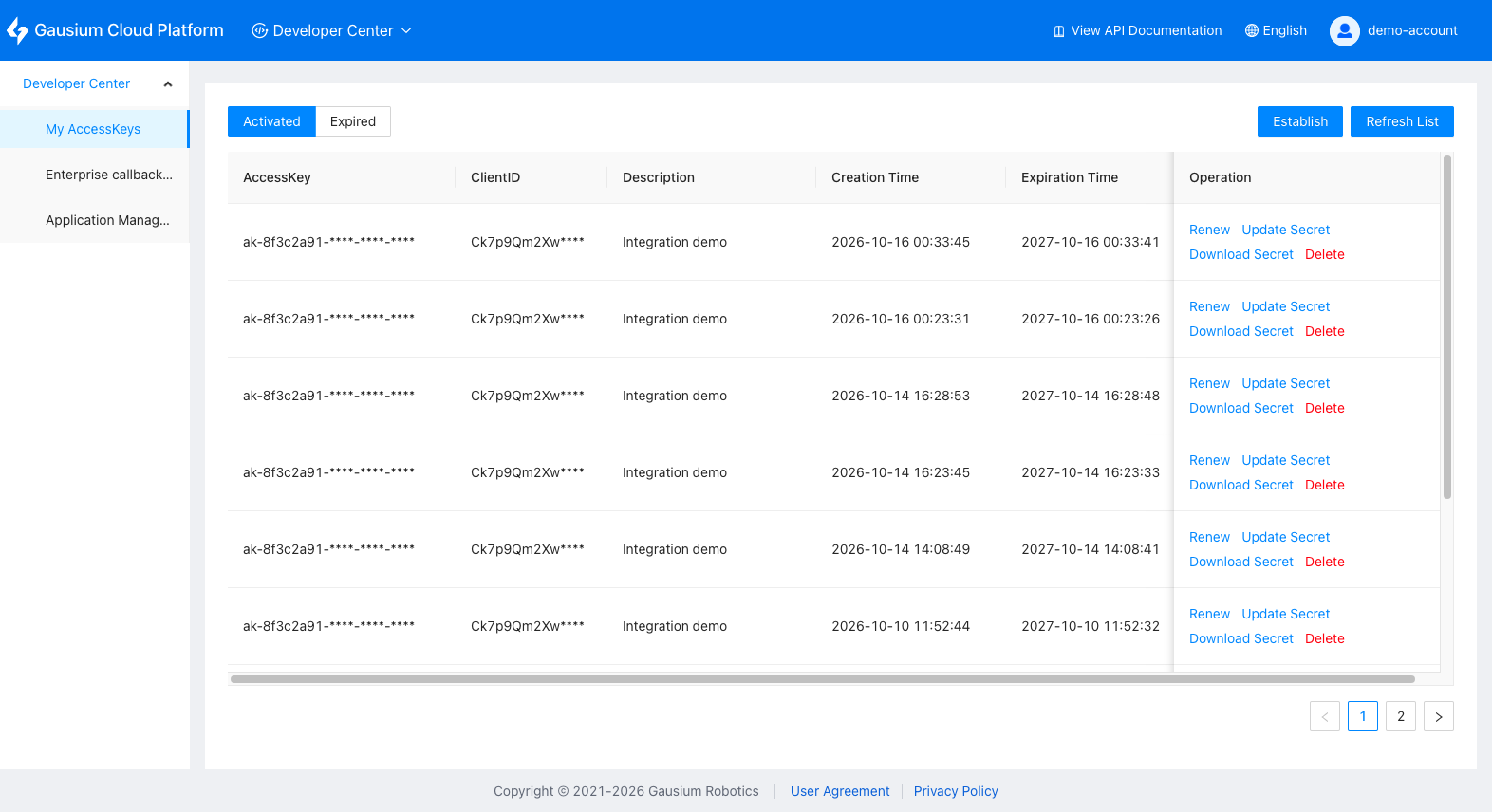
- In the Developer Center, open My AccessKeys in the left navigation.
- Click Create, enter a name, description, and expiration (1 year, 2 years, or a custom date), and submit.
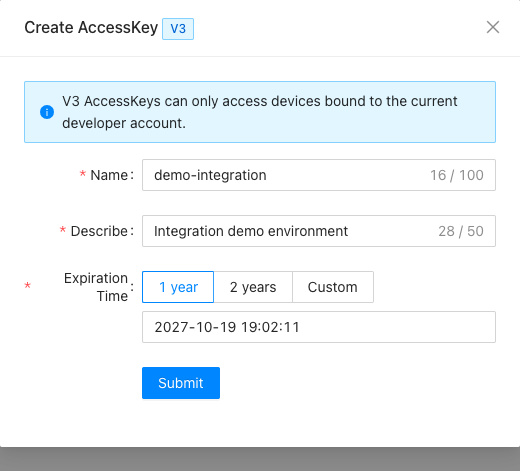
- After creation, the system generates both the AccessKey and its application information. Save the following four values from the success screen or the download:
| Credential | Purpose |
|---|---|
AccessKeyID | Identifies the AccessKey; not used in OAuth requests. |
AccessKeySecret | Used as open_access_key (the communication secret) in OAuth requests. |
ClientID | Used as client_id in OAuth requests. |
ClientSecret | Used as client_secret in OAuth requests. |
Application Management is no longer in use. A newly created AccessKey automatically generates its application information (ClientID and ClientSecret), so you do not need to create an application separately.
The AccessKey list provides Renew, Update Secret, Download Secret, and Delete. Credentials may be shown only once on the success screen or in the download, so save them before leaving the page.
Keep AccessKeySecret and ClientSecret on a server or in a secret manager. Never commit credentials to a repository, browser bundle, log, or ticket.
Use Renew before an AccessKey expires. If a secret is lost, use Download Secret or Update Secret to obtain it again. An existing V1 AccessKey can be upgraded to V3, but its ClientID stays empty after the upgrade; continue using the ClientID from the original application.
AccessKey credentials exist in two versions only, V1 and V3. There is no V2 version. V2 endpoints belong to the legacy OpenAPI system and accept a token obtained with a V1 AccessKey.
Step 3: Obtain an OAuth access token
Open Authentication > Get OAuth Token in the left navigation, or send the request below. The authentication endpoint keeps the legacy URL and returns an access_token, refresh_token, and expires_in on success.
curl -X POST 'https://<developer-host>/gas/api/v1alpha1/oauth/token' \
  -H 'Content-Type: application/json' \
  -d '{
  "grant_type": "urn:gaussian:params:oauth:grant-type:open-access-token",
  "client_id": "<ClientID>",
  "client_secret": "<ClientSecret>",
  "open_access_key": "<AccessKeySecret>"
}'
Request fields:
| Field | Description |
|---|---|
grant_type | Fixed value urn:gaussian:params:oauth:grant-type:open-access-token. |
client_id | ClientID generated when the AccessKey was created. |
client_secret | ClientSecret generated when the AccessKey was created. |
open_access_key | AccessKeySecret generated when the AccessKey was created (the communication secret). |
Tokens are valid for 24 hours by default. Use the returned expires_in to manage renewal. Before the token expires, call Authentication > Refresh OAuth Token with the refresh_token; no new authorization is required.
Step 4: Call your first V3 endpoint
Except for authentication, V3 endpoints start with /openapi/v3/, use POST with a JSON body, and require a Bearer token. For example, get current robot status snapshots:
curl -X POST 'https://<developer-host>/openapi/v3/robots/status/get' \
  -H 'Authorization: Bearer <access_token>' \
  -H 'Content-Type: application/json' \
  -d '{
  "robotSnList": ["<robot-serial-number>"]
}'
Successful responses use {code, msg, traceId, data}, where code = 0 means success. On failure, use V3 Error Codes to identify the cause. Status snapshots are not real-time. Online robots return runtime fields such as task, battery, map, and position; offline robots may not have those fields.
Step 5: Continue by business domain
After the first request, expand the integration in this order:
- Use Base Info to verify robots and their status.
- Use Map Data to retrieve maps, canvases, charging positions, and map resources.
- Use Tasks and Scheduling > Capabilities and Resources to query work modes, robot capabilities, and task resources.
- Use Tasks and Scheduling to create Combined Tasks, schedules, or temporary tasks.
- Use Command Operation for navigate-home commands, then track asynchronous commands with Get Command Status or List Command Records.
Every endpoint page includes a Try It panel, field examples, a response example, and a copyable curl command. If a browser request is blocked by CORS, copy the curl command and run it from your server or terminal.